
Bridge is a browser extension that provides access to your external applications from inside the EHR. Bridge is designed to follow the user’s workflow and provide relevant information and functionality as the user works within the EHR. Follow the steps below to begin!
If you access eCW via the eCW plugin, please use the instructions below. If you access eCW via the browser, or use another EHR, please use the instructions here: Bridge Installation Instructions
1. Close all eCW windows.
2. Download the Bridge Installer: bridgesetup_1.1.0.exe
- The Bridge extension is installed via an installer application. This application configures your system to enable the Bridge extension within the eCW plugin.
3. Run Bridge Setup
- Note: There is no user interface during installation. You may see a command prompt pop up briefly, but no user action is required.
- Note: Setup requires admin privileges.
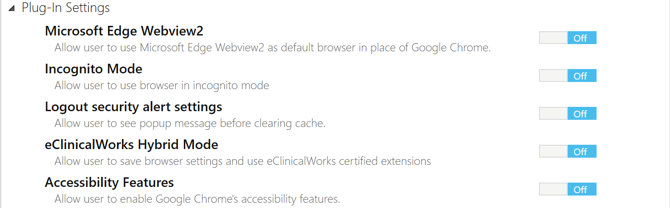
4. Open eCW and configure Plugin Settings (eCW Plugin v5 specific)
- Plug-In Settings > Microsoft Edge Webview2 > Off
- Turning Webview2 OFF will expand 4 additional settings options:
- We recommend Hybrid Mode OFF
- Incognito Mode should work either ON or OFF, but if Bridge is not loading, we recommend trying Incognito Mode OFF
|
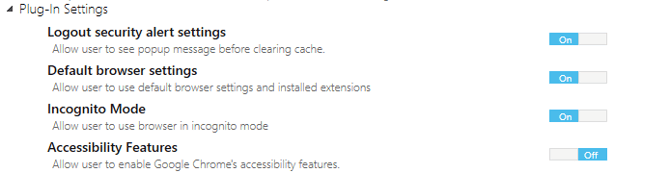
5. Configure Plugin Settings (eCW Plugin v4 specific)
- Bridge does not require specific settings to run in eCW.
- However, if "Default browser settings" and "Incognito Mode" are enabled and Bridge is not loading/appearing in eCW, one extra step might need to be performed:
- Close all eCW and Chrome windows.
- Relaunch eCW while Chrome is NOT running.
- This step should only need to be completed once.
 |
6. Log in to eCW.
If Bridge did not load when the user logged in to eCW, try closing out of all eCW windows, reopening the EHR, and logging in again.
-
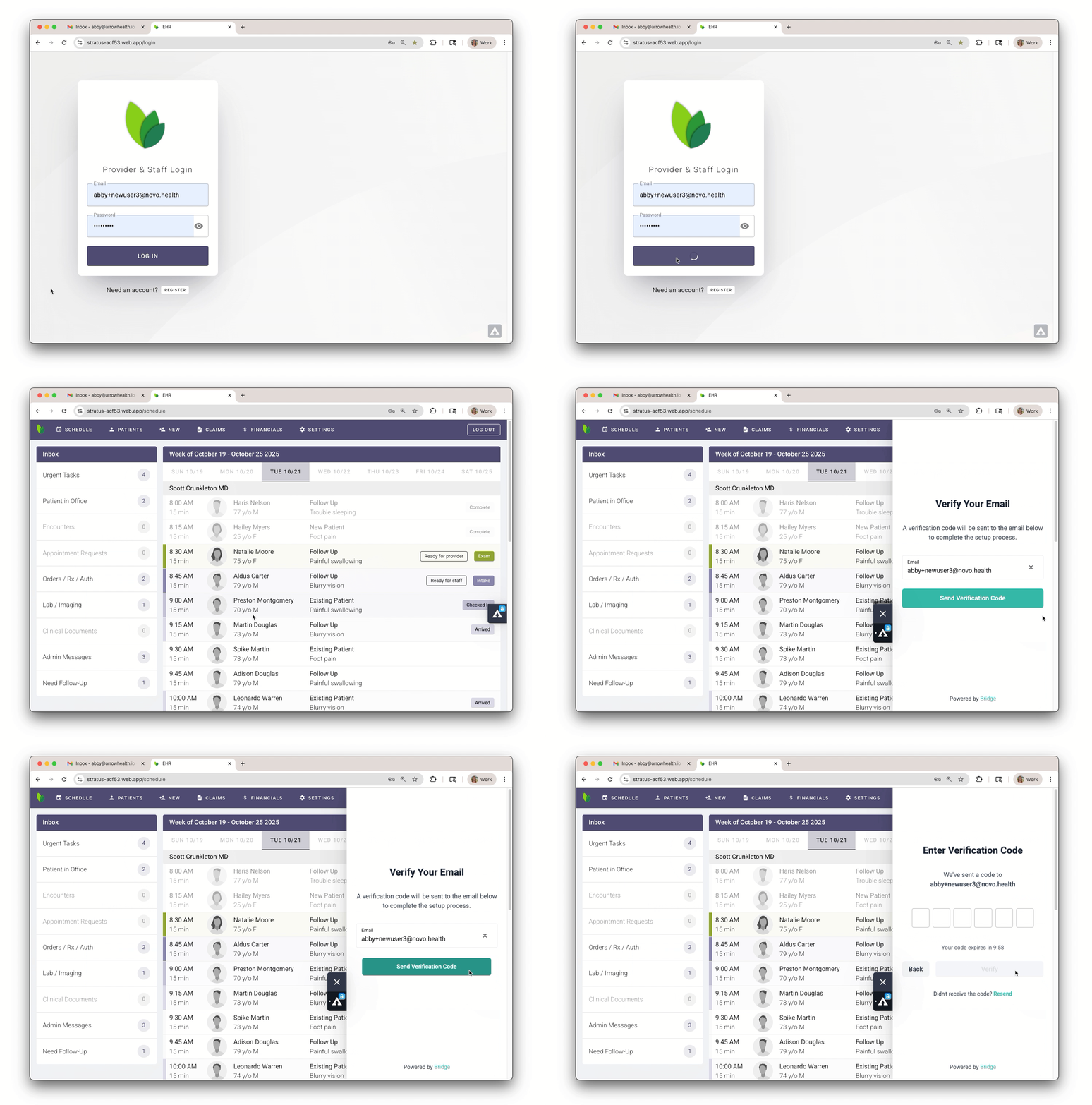
Click the Bridge toolbar on the right hand side of your screen to open the verification panel.
-
Enter your email address and click ‘Send Verification Code’.
7. Verify your email
-
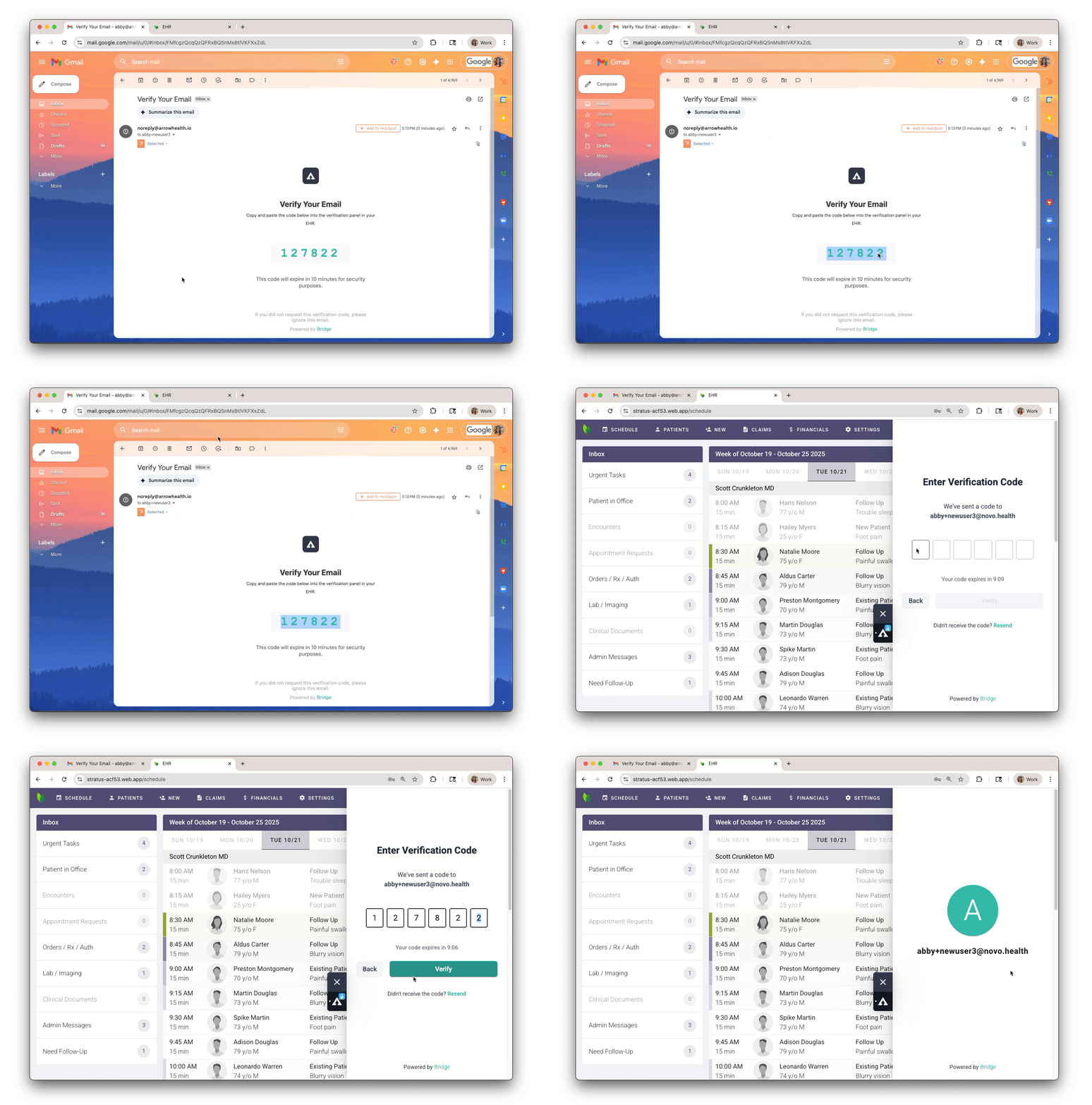
Access your email inbox and look for the verification email. Copy the verification code in the body of the email.
8. Return to your EHR
-
Paste the verification code where prompted in the panel. This completes the Bridge installation.
To ensure that eCW is using the right settings for Bridge to open:
- Locate the eClinicalWorks shortcut icon
- Right click the icon and select Properties
- Check the Chromepath.
- Correct Chromepath: C:\Users\username\AppData\Local\Arrowhealth\Bridge\chrome.exe
- Incorrect Chromepath:
C:\Program Files\Google\Chrome\Application\chrome.exe
- If the Chromepath is incorrect, re-run the installer.
Other eCW Scenarios
On eCW Plugin Update
- If eCW plugin is ever updated, it is possible that Bridge will be removed from eCW. Repair is simple: rerun Bridge setup using the link from Step 1.
Uninstall the Bridge installer
- Windows settings > Add or remove programs > Arrowhealth Bridge > ... > Uninstall
-
- As an administrator, open Registry Editor.
- Go to
HKEY_LOCAL_MACHINE\SOFTWARE\Policies\Google\Chrome\ExtensionInstallForcelist. - Find the value containing extension ID
fieamabnfgcgmcpmfgcjbgcfkibgfpfgand delete it.