
Often, there may be a desktop that is used by several different team members in an office. This can sometimes impact Bridge and its use. This article will review what can cause differences in Bridge behavior when multiple people use the same desktop, and some best practices to make sure everyone who needs to can use Bridge.
Problem
I share a desktop with an office mate. When my office mate logs into the EHR, Bridge loads for them. When I log in to the EHR, Bridge does not load.
Resolution Steps
Investigate if Google Accounts are being used at your workplace.
If you or your office mate sign in to a Google Account on the Chrome browser, the browser session will have settings, preferences, and installations that include Arrowhealth Bridge browser extension. These settings will be unique to the Google Account user. Differences in Google Account settings can cause different browser experiences for different team members.
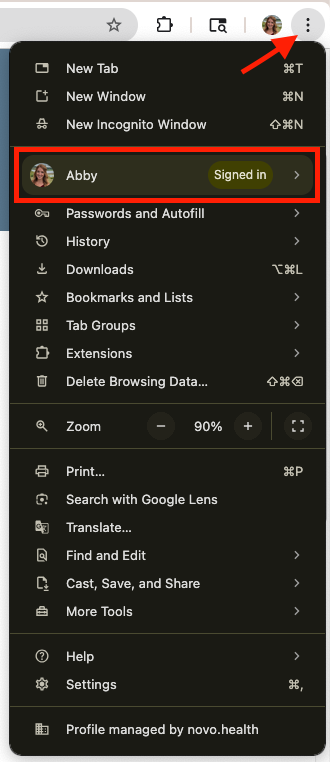
- Open the Chrome menu on the top right hand corner of the browser.
If you DO have a Google Account signed in, this could be why different users at the same computer have different browser settings. In this example, the office mate likely also signs into their own Google Account, which has Bridge installed as a setting, and your Google Account does not.
-
- If your Google Account does not have Bridge installed, install Bridge.
If you do NOT have a Google Account signed in, this could still be why you and your office mate have different browser settings. Your office mate likely also signs in to their own Google Account, which has Bridge installed as a setting. If you do not use a Google Account, this likely indicates that the browser default settings do not have Bridge installed.
-
- Open a browser session without a signed in Google Account user and install Bridge.
If you installed Bridge but it is still not appearing, confirm that Bridge installation was completed.
In some cases, the Bridge installation may been interrupted or otherwise not completed.
-
Navigate to the Extensions page in the browser.
-
Verify that the extension has been installed and is not disabled.
-
Reenable or reinstall the extension.
- If you are still experiencing issues, see our Installation Help guides.
Best Practice for offices that use Google Accounts
- Have all users install Bridge when signed in to their own Google Account.
- Log out of Google Account on each desktop/workstation. Install Bridge as a default browser setting.
By completing these two steps, it ensures Bridge will load on the EHR for any team member who logs in, Google Account user or not.