
As you navigate through the demo EHR, Bridge and your app will react to the content on the page and display relevant information. The Easy Button app has 4 panel displays:
- Main display
- Shown when the user is anywhere in the EHR that is not a patient chart. Typically it is a URL displaying information about your program.
- Good Candidate
- Shown when the user navigates to a patient chart who meets the qualifying criteria set by the client. The user will be presented with an option to refer the patient and display the qualifying patient criteria.
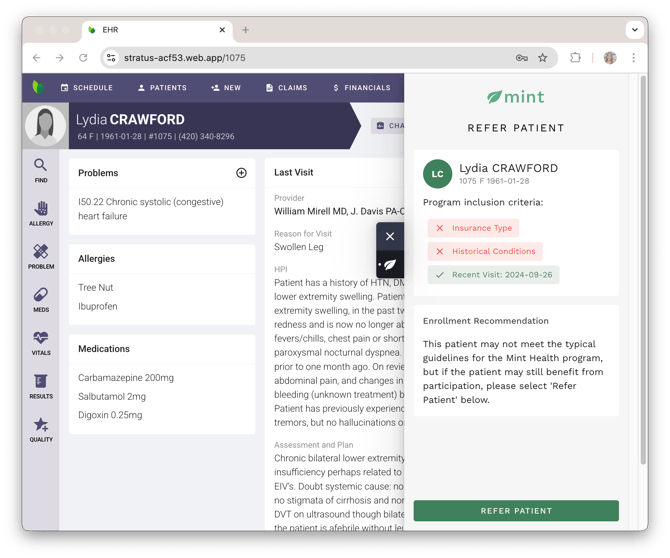
- Bad Candidate/Disqualified
- Shown when the user navigates to a patient chart who does not meet the qualifying criteria set by the client. In addition, a optional disqualified panel can be shown for patients with strict exclusion criteria.
- Enrolled Patient
- Shown when a user navigates to a patient who was referred, then enrolled in the client database. Enrollment information will display in the panel.
If you need access to Stratus, visit Create a new demo user for instructions on getting set up.
Main display (default panel)
If the end user opens the app from anywhere in the EHR that is not a patient chart, the main display is shown by default in the app panel. Most clients choose to display a mobile friendly version of their company's website.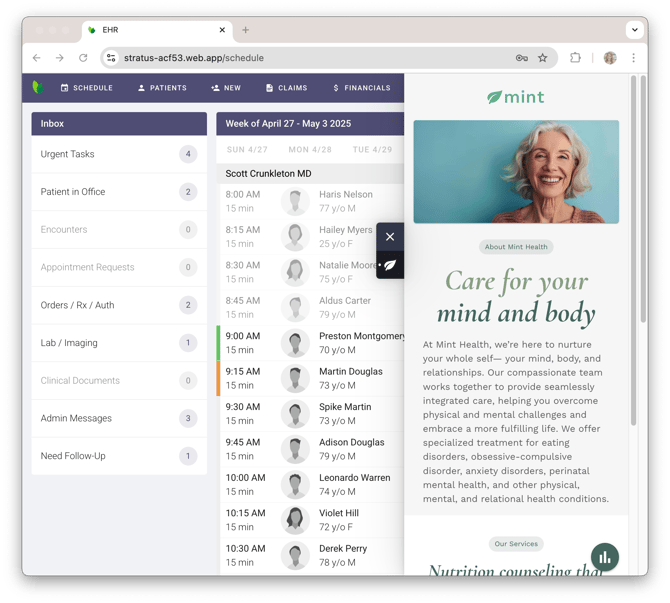
Good Candidate
By navigating to a patient who meets the qualifying criteria based your inclusion data, the app will offer the referral workflow. 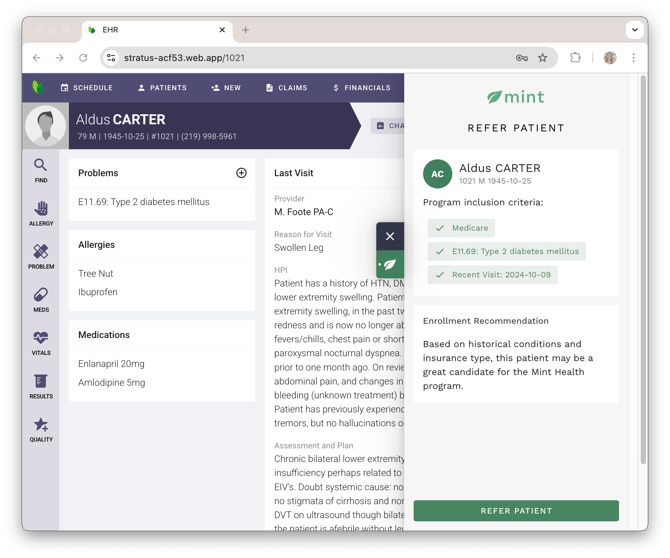
By referring a patient in the demo EHR, it creates a new patient in your patient database (i.e. Tellescope, Zoho, Hubspot, etc).
If a patient is referred, the panel will indicate the referral was submitted, when it was submitted, and the patient's current status in the referral process.
Bad Candidate
A patient who does not meet the inclusion criteria is considered a "bad candidate" but can still be enrolled using Provider discretion.
If your program has strict exclusion criteria that completely disqualifies a patient from enrollment, you have the option to set up a "disqualified" screen that will not allow enrollment.
Enrolled Patient
Once a patient is referred and created in your patient database, you can update their status to enrolled. The app will then display dummy enrollment information, giving end users an idea of what information could be available to them after patients are enrolled.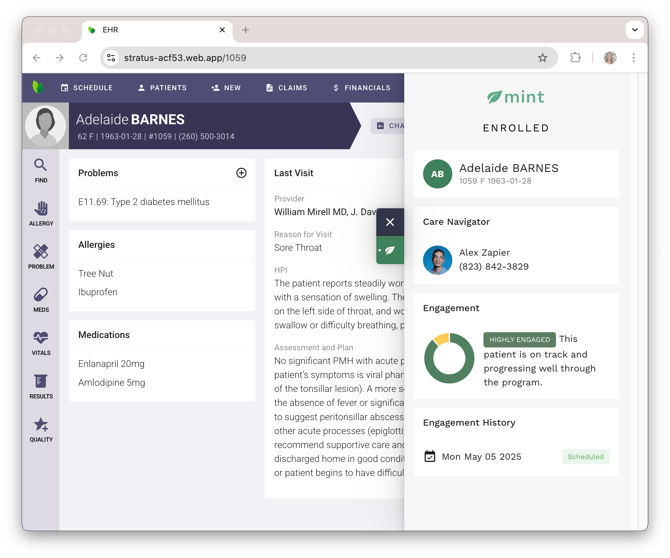
Important Reminders
- By referring a patient in the demo EHR, it creates a new patient in your patient database (i.e. Tellescope, Zoho, Hubspot, etc).
- In your patient database, you can modify the patient status to "enrolled" in order to demonstrate an example of an enrolled patient.
Reusing Patients
- To make referred patients available as "good candidates" again for your next demo, simply delete the patient that was created in your patient database. The patient will then display the referral option again for another demonstration. No need to create new patients for every demo.