
Problem
After installation, when the user logs in to the EHR, the Bridge toolbar / your app does not appear.
Resolution Steps
Confirm that the EHR is supported
Bridge operates in specific EHRs and will only run in those authorized environments.
- Verify that the EHR is listed in the supported EHRs.
Verify Installation
In some cases, the Bridge installation may been interrupted or otherwise not completed.
-
Navigate to the Extensions page in the browser.
-
Verify that the extension has been installed and is not disabled.
-
Reenable or reinstall the extension.
Ensure that Chrome/Edge are up to date
Chrome or Edge may disable extensions if the browser is out of date and missing critical patches.
Chrome Instructions
-
On your computer, open Chrome.
-
At the top right, click More .
-
Click Help. About Google Chrome.
-
Click Update Google Chrome. Important: If you can't find this button, you're on the latest version.
-
Click Relaunch.
Verify that Bridge is running on the Login Screen
-
Navigate to the login screen of the EHR.
-
In the lower right hand corner, verify that the Bridge watermark is displayed.
SOLUTION 1: There may be an extension setting preventing Bridge from running. The Site access setting must be set to: "on all sites".
-
Click the puzzle piece icon on the Chrome toolbar > Manage extensions > On the Bridge extension card, click Details > Set site access to "on all sites"
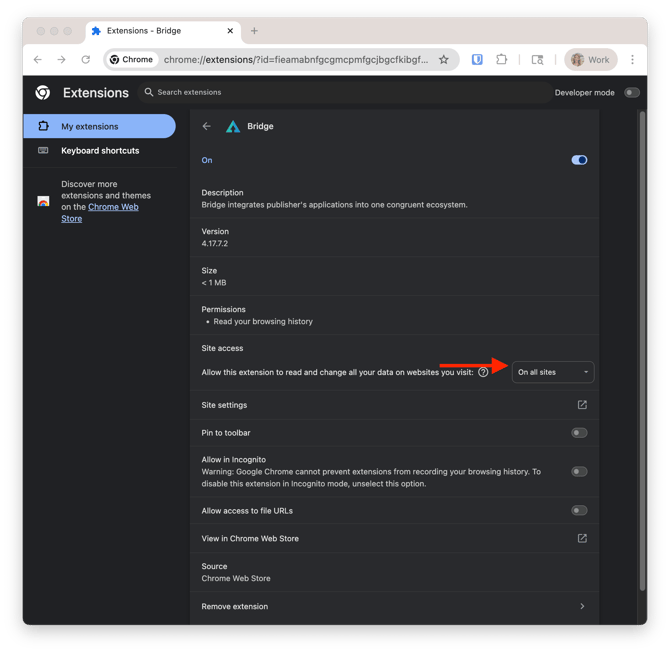
SOLUTION 2: Bridge only runs on authorized URLs and should be running on the login screen of the application. If the URL of the login screen has changed it may cause Bridge to not run.
-
If the watermark is still not displayed after checking site access, please make note of the name of the EHR and the URL of the login page.
Check which browser you use to log in to the EHR.
If Bridge is installed on Chrome, but the user logs into the EHR via Microsoft Edge, Bridge cannot load.
- To check if Bridge is installed on the browser you use to log in to the EHR, complete the "Verify Installation" step at the top of this article.
- If you use both Chrome and Edge to access your EHR, you can install Bridge on both Chrome and Edge. Complete the Bridge installation steps in both browsers.
Investigate if other team members at your clinic use the same computer and if Google Accounts are used.
If you or your office mate sign in to a Google Account on the Chrome browser, the browser session will have settings, preferences, and installations that include Arrowhealth Bridge browser extension. These settings will be unique to the Google Account user. Differences in Google Account settings can cause different browser experiences for different team members.
-
Please visit this article for troubleshooting steps and more details.
Edge Instructions
In the browser, go to Settings and more > Help and feedback > About Microsoft Edge (edge://settings/help). If the About page shows Microsoft Edge is up to date, you don't need to do anything. If the About page shows an update is available, select Download and Install to proceed.
Verify that Bridge is running on the Login Screen
Bridge only runs on authorized URLs and should be running on the login screen of the application. If the URL of the login screen has changed it may cause Bridge to not run.
-
Navigate to the login screen of the EHR.
-
In the lower right and corner, verify that the Bridge watermark is displayed.
-
If the watermark is not displayed, please make note of the name of the EHR and the URL of the login page.
If each of the above steps have been followed, please reach out to the account representative.
🔍 Most common culprit
An out of date browser may cause Bridge to be disabled by Chrome or Edge. Check there first. Otherwise, its possible that a Login Page URL was updated.