
Bridge is a browser extension that provides access to your external applications from inside the EHR. Bridge is designed to follow the user’s workflow and provide relevant information and functionality as the user works within the EHR. Follow the steps below to begin!
eCW Installation
If you access eCW via the browser, please follow the instructions below. If you access eCW via the eCW plugin, first you'll need to follow the instructions here: eCW Bridge Installer Instructions and then skip to the EHR login step to complete the installation process.
Install the Bridge browser extension.
-
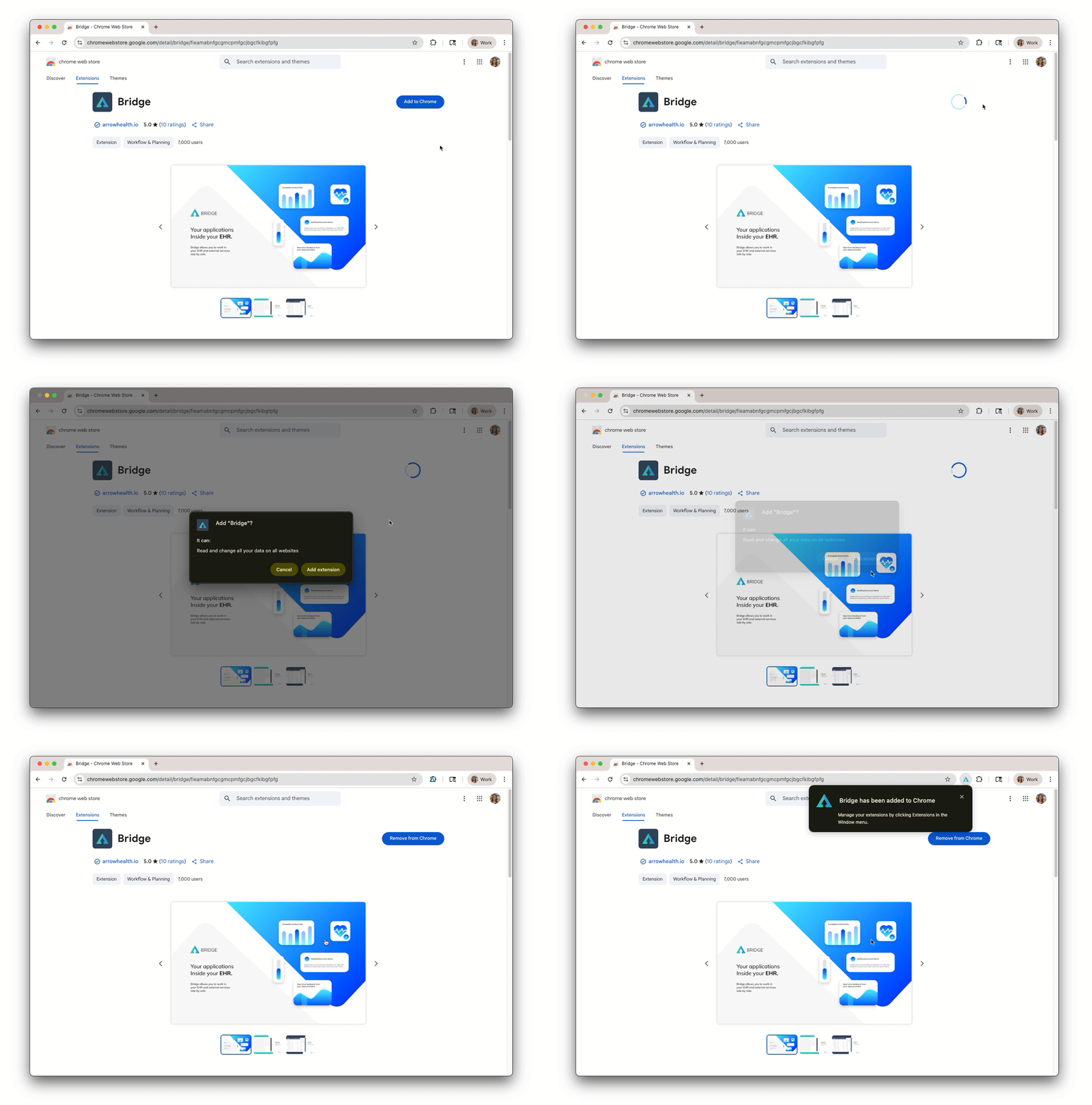
Follow this link to the Bridge Installation Link in your Chrome or Edge web browser.
-
Select ‘Add to Chrome’ or ‘Add to Edge’.
-
Click ‘Add Extension’ in the pop up window that appears.
Log in to a new session of your EHR.
-
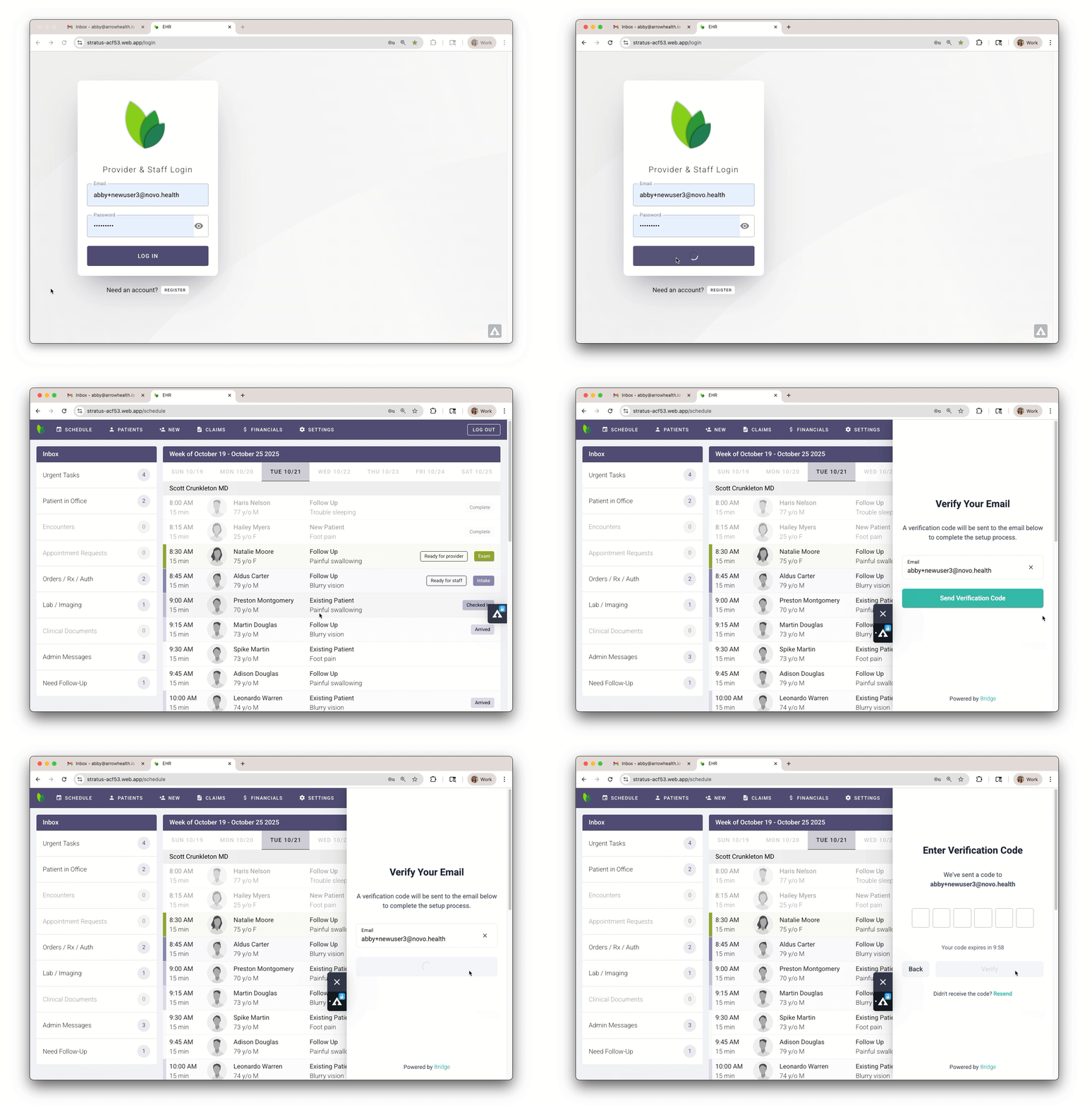
Log into your EHR.
-
Click the Bridge toolbar on the right hand side of your screen to open the verification panel.
-
Enter your email address and click ‘Send Verification Code’.
Make sure all active tabs of your EHR have been closed, Bridge will not load if tabs remain open.
Verify your email
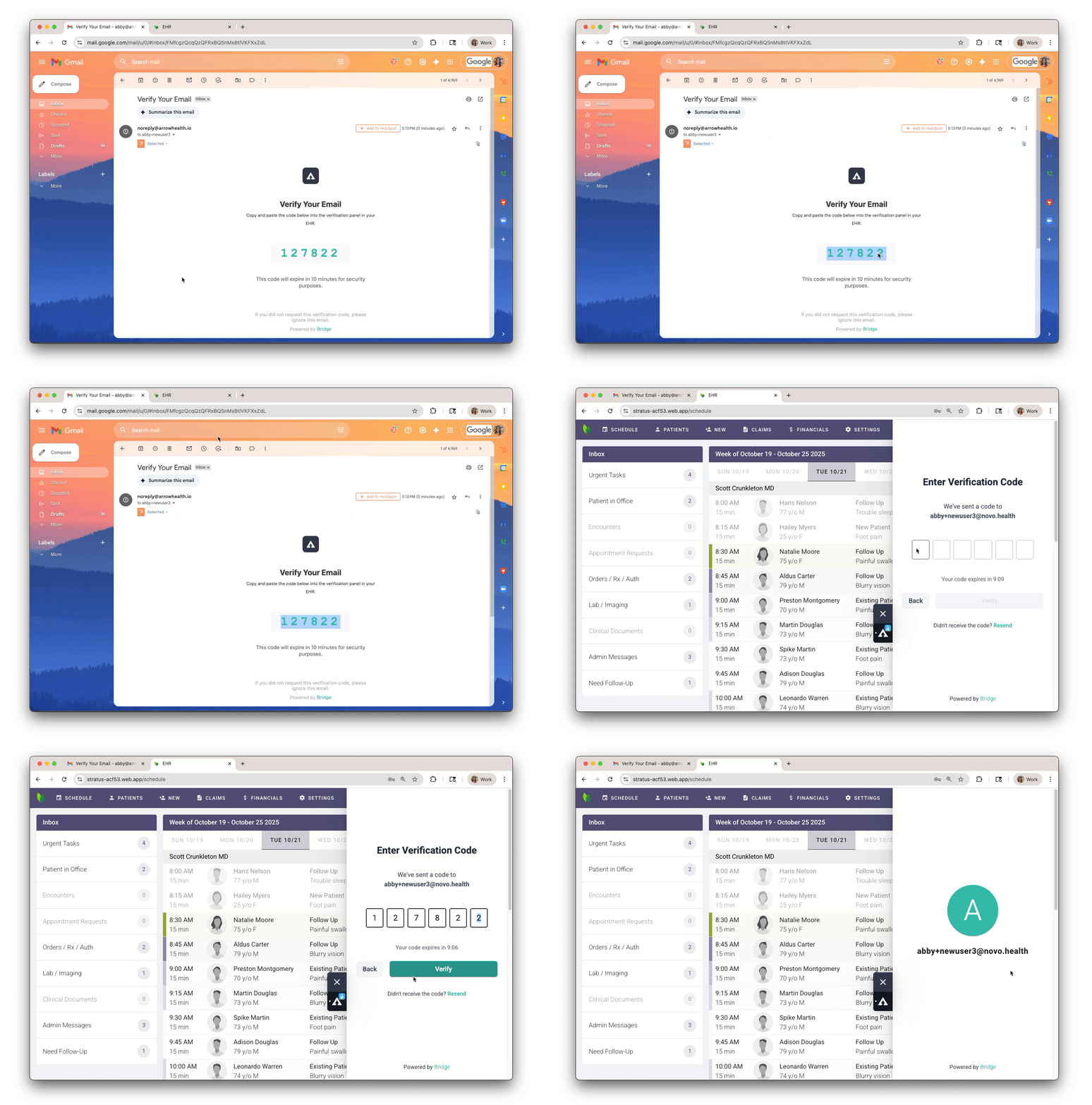
Access your email inbox and look for the verification email. Copy the verification code in the body of the email.
Return to your EHR
Paste the verification code where prompted in the panel. This completes the Bridge installation.
After installation is complete, your partner's application should load. You can also try refreshing your screen to prompt this. If your partner's application does not load, try these steps.
Browser Settings
Bridge may work best if Third party cookies are enabled.
Chrome Settings > Privacy and Security > Third party cookies > Select “Allow all third party cookies”
Frequently Asked Questions
How often will I need to reverify my email?
-
As a new user
-
When you change your EHR password
What if Bridge doesn’t load when I log in?
-
Log out of all active sessions of your EHR and log back in.
-
Ensure that Bridge is loaded as an extension by clicking Chrome Overflow Menu (three dots) > Extensions > Manage Extensions
-
If there has recently been an EHR update, make sure to check your browser or plug-in settings.